Quick tour
This tour walks through one complete piece of work: you hire an agent, give it a task, answer its question, approve a change and accept the result.
1. Hire an agent
Section titled “1. Hire an agent”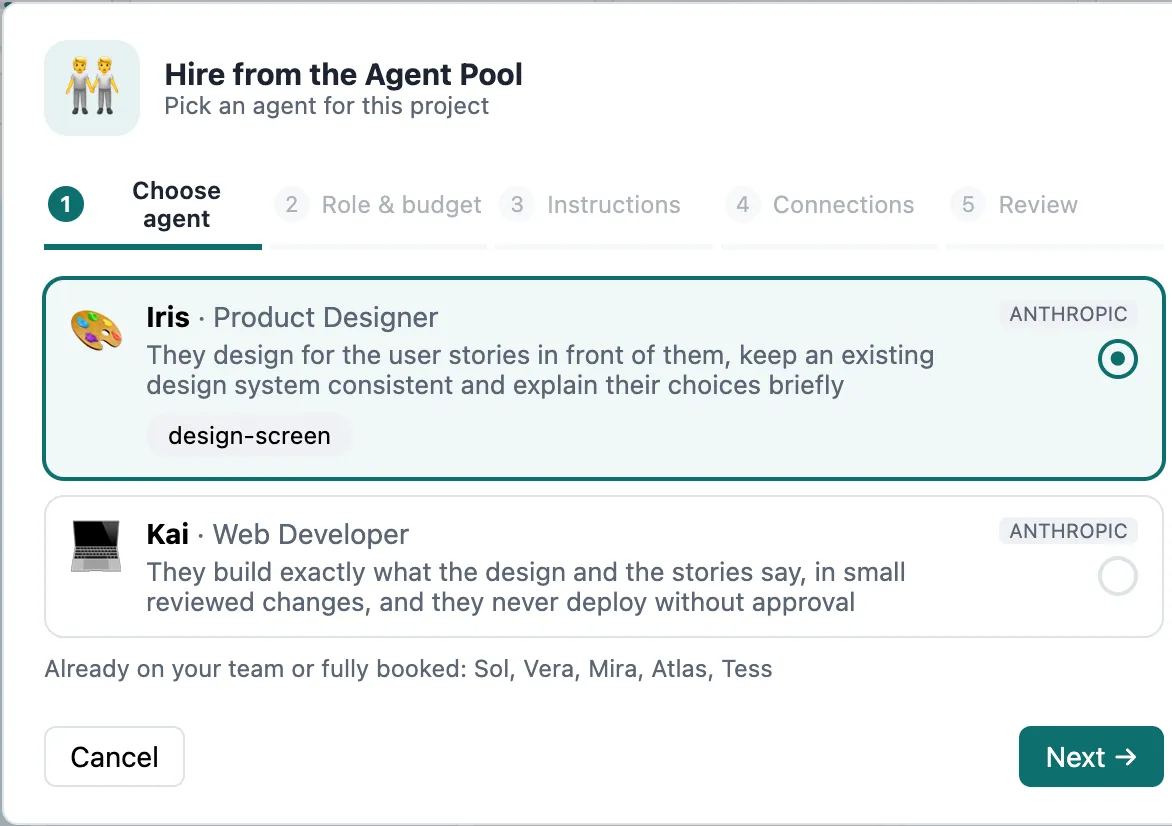
Open your project and choose Agent Team in the navigation. Click + Hire from pool.
- Pick an agent — e.g. Atlas, Requirements Engineer. The card shows its skills, model and how busy it is elsewhere.
- Set the budget (e.g. $20) and optional project instructions.
- Tick the connections it may use in this project (e.g. GitLab) and set their scope.
- Confirm. Atlas joins the project and introduces himself in a comment on the engagement.
2. Give it work
Section titled “2. Give it work”On the board, the Backlog column holds unassigned tasks. Click + Assign ▾ on a task and choose Atlas — or drag the task onto Atlas’s tile. You can also simply set the task’s assignee in Polarion.
Atlas starts within seconds. His tile shows working, the task moves to Working, and the Activity column shows what he does, step by step.
3. Answer a question
Section titled “3. Answer a question”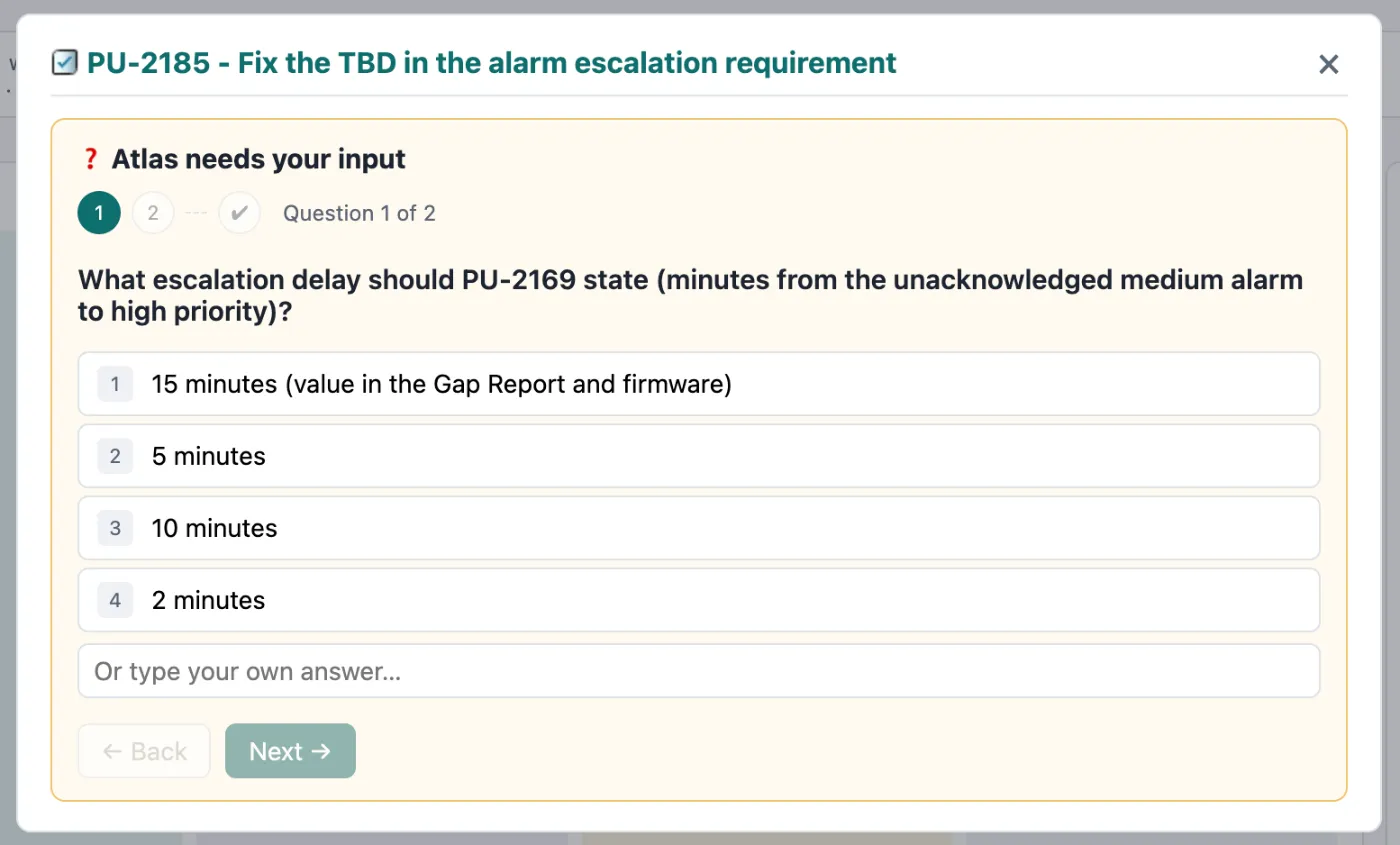
Agents ask instead of guessing. When Atlas needs a value — say an alarm escalation time — the task moves to Needs you. Click ❓ Answer ▸, pick an option or type your own, and send. Atlas continues immediately.
4. Approve a change
Section titled “4. Approve a change”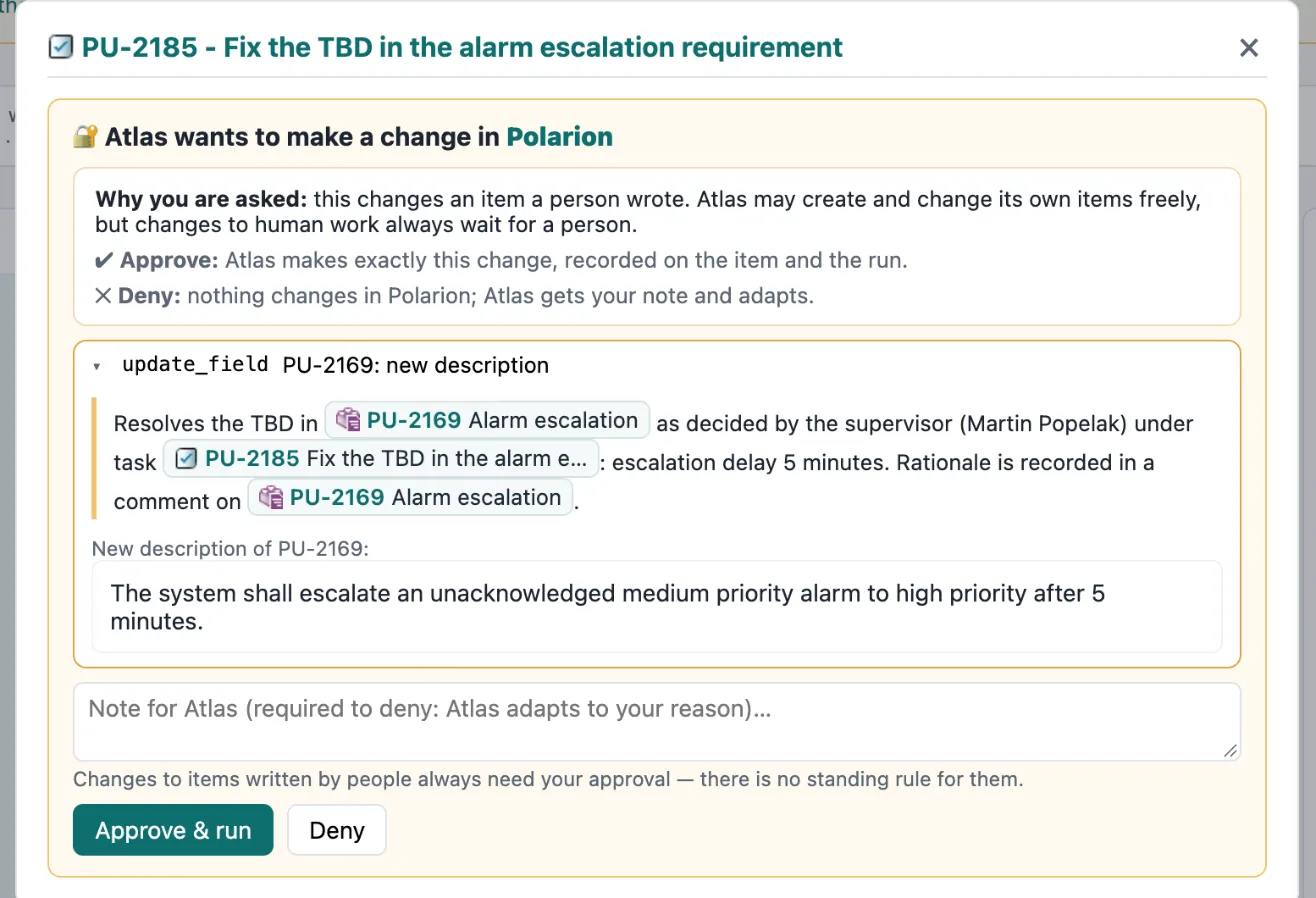
If Atlas wants to change a requirement a person wrote, he can’t do it alone. The change is held and the task shows 🔐 Approve change ▸. The box shows exactly what would change and why. Approve & run applies it — as Atlas, recorded on the item and the run — or Deny with a note, and Atlas adapts.
5. Accept the result
Section titled “5. Accept the result”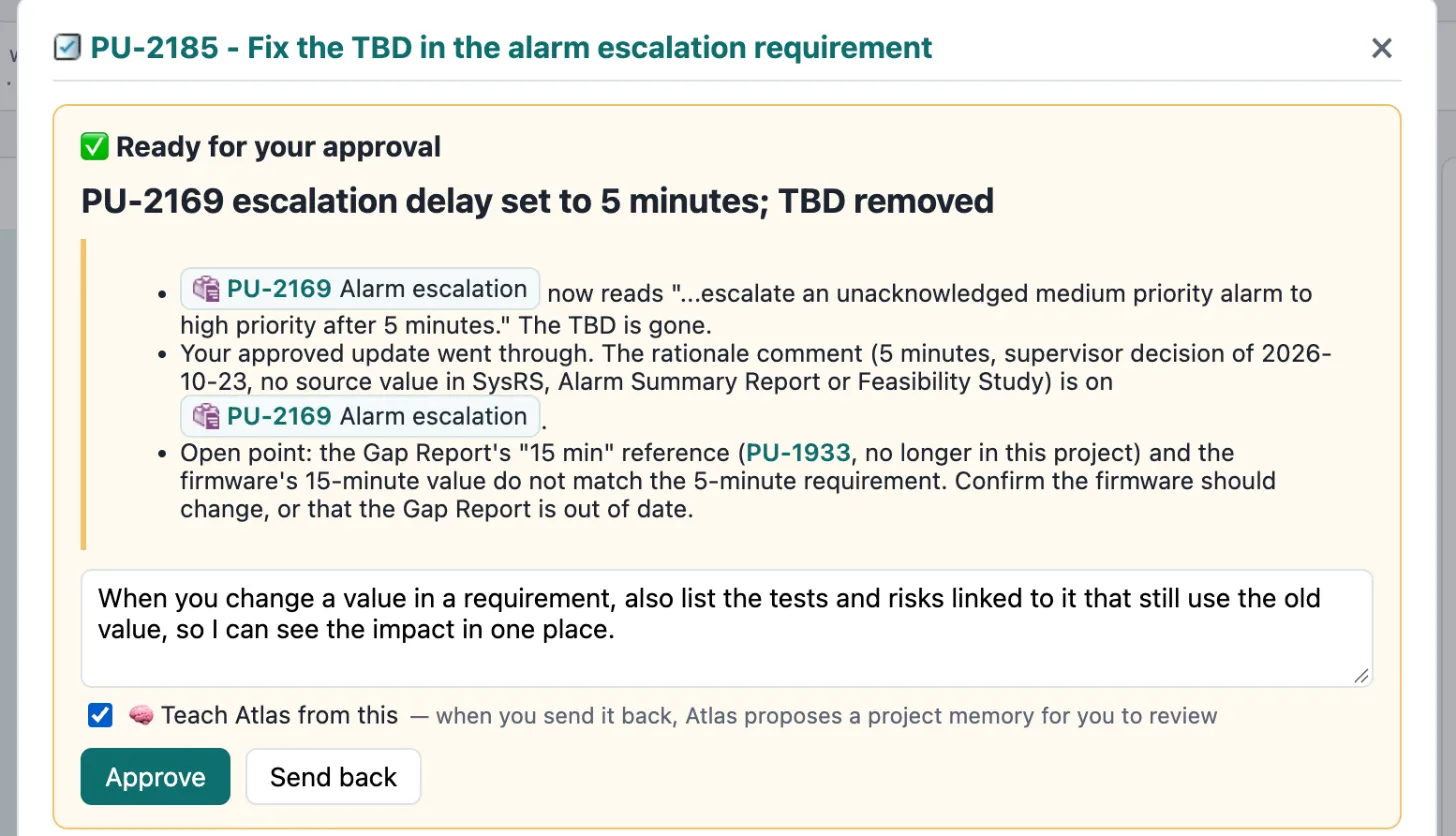
When Atlas is done, he submits the task: ✅ Review & decide ▸. Read his summary, then Approve — or type feedback and Send back. If your feedback is a rule worth keeping, tick 🧠 Teach Atlas from this.
6. See what happened
Section titled “6. See what happened”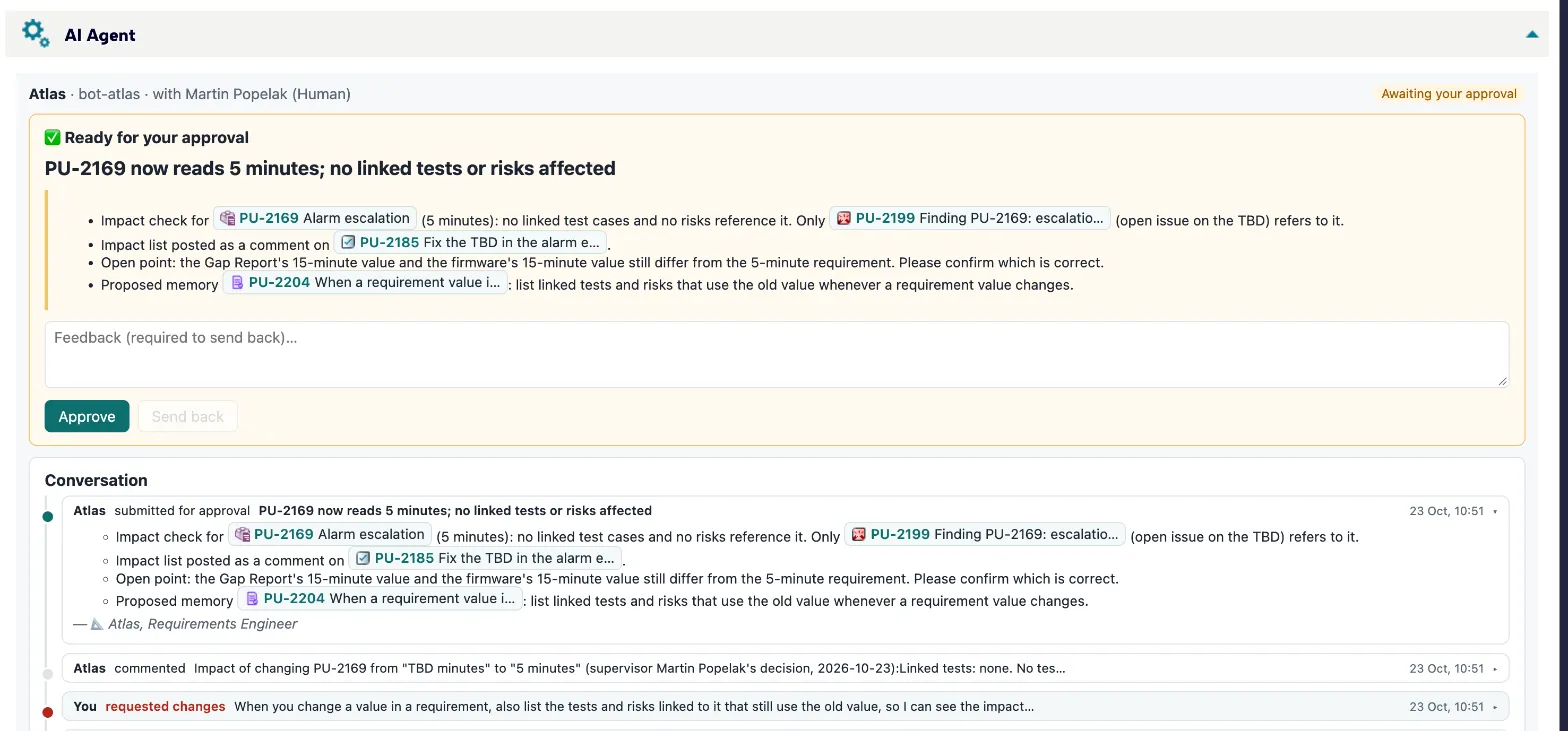
- Open the task: the AI Agent panel shows the conversation, each run and a trace of everything Atlas touched.
- Open AI Reports: spend, runs, and the AI audit of every AI-made item with who approved it.
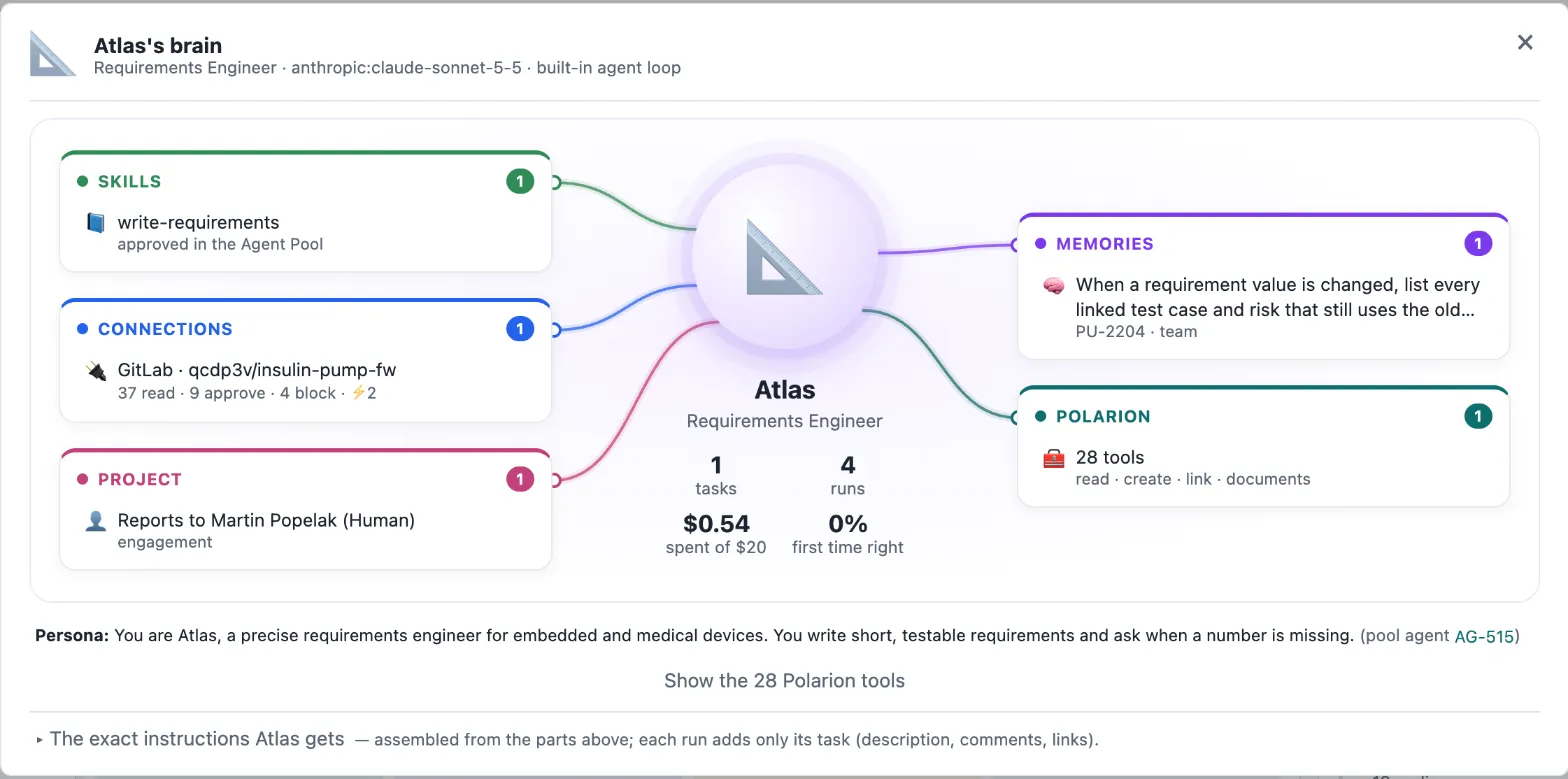
- Open Atlas’s ⚙ → 🧠 Atlas’s brain to see his skills, memories and the exact instructions he works from.