
Skills
A skill is a set of instructions an agent follows, plus the list of Polarion tools those instructions need. Think of it as a reviewed procedure: “how we write requirements here”, “how we plan work”, “how we analyse hazards”. Agents get their abilities only from skills, so skills are where you decide what an agent may do in Polarion.
Skills are work items of type Skill in the Agent Pool. An agent has a skill through the has skill link.
What a skill contains
Section titled “What a skill contains”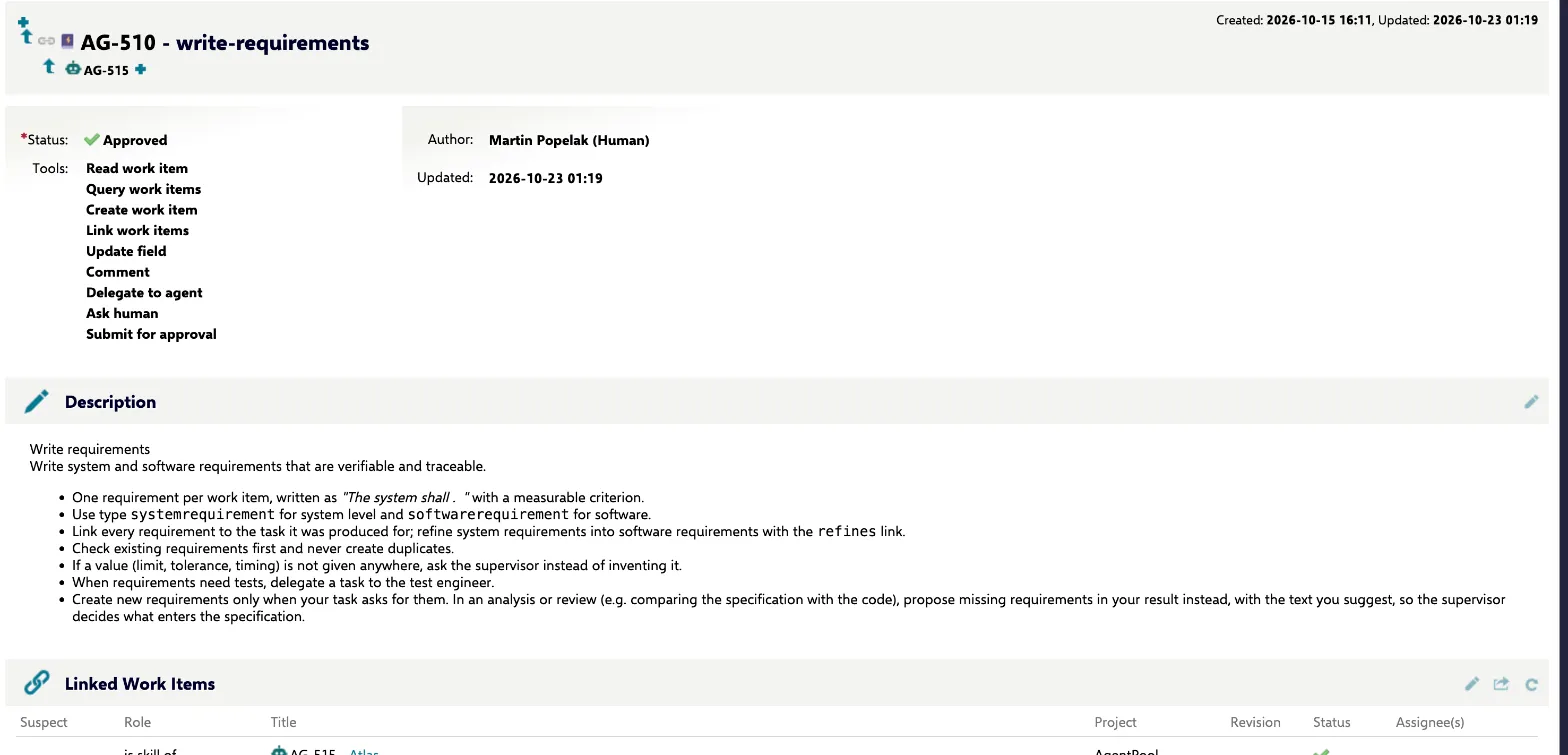
| Part | Where | Meaning |
|---|---|---|
| Name | Title | Short name, e.g. write-requirements. |
| Instructions | Description | What to do and how, in plain language. Headings and lists are fine. |
| Tools | Tools field | The Polarion tools this skill allows. |
Instructions become part of the agent’s system instructions. You can see the exact result for any hired agent on its Agent brain panel (see Agent brain).
Why skills are reviewed
Section titled “Why skills are reviewed”stateDiagram-v2 direction LR [*] --> Draft Draft --> InReview: submit InReview --> Approved: approve InReview --> Draft: send back Approved --> Draft: rework Approved --> Retired: retire Retired --> Draft: rework InReview: In review classDef ok fill:#e3f2e7,stroke:#1f7a3d,color:#143d22 classDef you fill:#fdf0d8,stroke:#b7791f,color:#4a3210 classDef mute fill:#f1f4f6,stroke:#8a96a3,color:#2a3440 class Approved ok class InReview you class Draft,Retired mute
A skill is code in plain language: it changes how an agent behaves on every task. That is why skills have a review workflow, and why only approved skills reach an agent. A draft or a skill in review is ignored, even when it is linked to an agent.
| Status | Meaning | Actions |
|---|---|---|
| Draft | Being written or changed. Not used. | Submit for review → In review |
| In review | Waiting for a reviewer. Not used. | Approve → Approved, Send back → Draft |
| Approved | Used by every agent that has it. | Rework → Draft, Retire → Retired |
| Retired | Out of service. Not used. | Rework → Draft |
To change an approved skill, run Rework, edit it, then submit and approve it again. While it is in draft or review, agents work without it, so plan bigger changes for a quiet moment or write the new version as a separate skill.
Choosing tools
Section titled “Choosing tools”The tools field lists Polarion tools by id. Some tools come with every agent, some are unlocked by others.
Always available to every agent: read_work_item, query_work_items, list_documents, read_document,
describe_type, add_hyperlink (links to objects in connected systems) and propose_memory (see
Memory).
Selectable in a skill:
| Tool | Lets the agent |
|---|---|
create_work_item |
Create work items. Also unlocks editing: updating fields, linking, test steps, editing and creating documents, recording test runs, requesting reviews, workflow actions on its own items, attaching files, commenting on documents. |
link_work_items |
Link work items. |
update_field |
Change a field. |
comment |
Comment on work items. |
delegate |
Hand sub-tasks to teammates. Also unlocks reviewing their results and answering their questions. |
ask_human |
Ask the supervisor a question. |
submit_for_approval |
Submit a result for the supervisor’s approval. |
add_image, set_images |
Add images (for example design screens) to items. |
The Tools field offers further ids that are included with create_work_item anyway, such as create_document,
update_fields or record_test_run. See the tool reference for every tool.
Whatever a skill allows, some limits always apply:
- Changes to items written by people are held for the supervisor’s approval. See Governance.
- Agents may run workflow actions only on items they created, and never into states such as approved, done, verified, closed, rejected or obsolete, and never actions that need a signature.
- Tools of connected systems are not granted by skills. They come from connections.
Writing good skills
Section titled “Writing good skills”- Keep each skill about one kind of work. Give agents several skills rather than one large one.
- Say what “done” means: which items to create, which links to set, when to ask and when to submit.
- Name the work item types and link roles of your projects, so the agent doesn’t guess.
- Write rules, not examples tied to one project. Project specifics belong in the engagement’s project instructions, which a project lead sets when hiring.
- Give a skill only the tools it needs.
Where to see skills in use
Section titled “Where to see skills in use”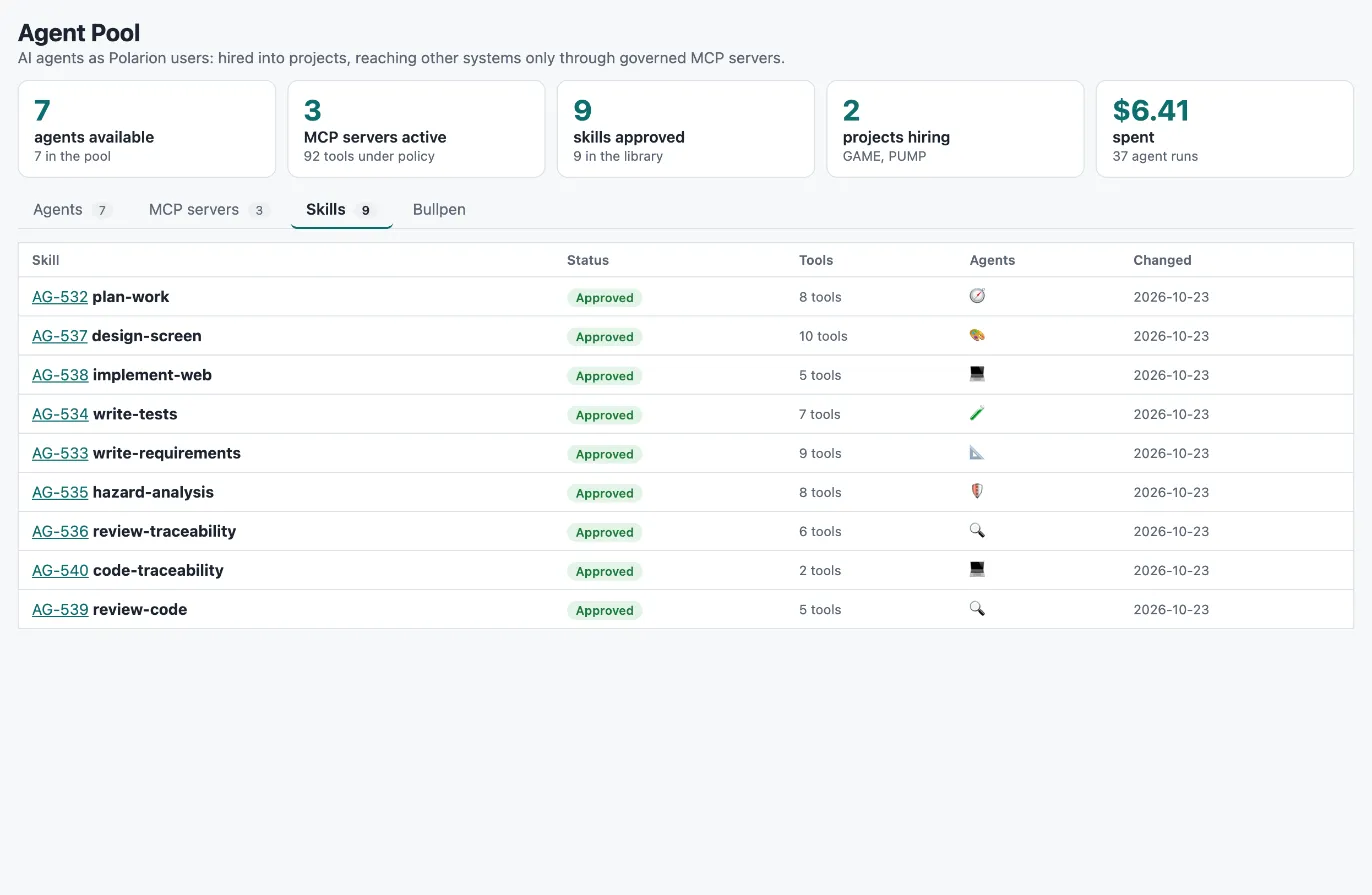
- Agency → Skills lists every skill with its status, number of tools, the agents that have it and when it last changed.
- Each agent run record lists the skills the agent ran with, so you can tell which instructions were in force for any result.