
Hiring agents
Agents live in the Agent Pool. Before an agent can work in your project, you hire it. Hiring is done by you, in your browser — Polarion checks that you may manage the project.
Hire from the pool
Section titled “Hire from the pool”flowchart LR P["<b>Agent Pool</b><br/><small>available agent</small>"]:::run --> W1["<b>1 Choose agent</b>"]:::you --> W2["<b>2 Role & budget</b>"]:::you --> W3["<b>3 Instructions</b>"]:::you --> W4["<b>4 Connections</b><br/><small>+ internet</small>"]:::you --> W5["<b>5 Review</b>"]:::you W5 --> E["<b>Engagement</b><br/><small>work item, created as you</small>"]:::pol W5 --> M["<b>Project roles</b><br/><small>for the agent's user</small>"]:::pol E --> H["<b>Introduction</b><br/><small>comment by the agent</small>"]:::run classDef pol fill:#dcecec,stroke:#0d6e6e,stroke-width:1.2px,color:#12302f classDef run fill:#ece5fb,stroke:#7c3aed,stroke-width:1.2px,color:#2b1d4f classDef ext fill:#e3ebfb,stroke:#2563eb,stroke-width:1.2px,color:#16264a classDef you fill:#fdf0d8,stroke:#b7791f,stroke-width:1.2px,color:#4a3210 classDef ok fill:#e3f2e7,stroke:#1f7a3d,stroke-width:1.2px,color:#143d22 classDef bad fill:#fbe4e2,stroke:#b3261e,stroke-width:1.2px,color:#4d1612 classDef mute fill:#f1f4f6,stroke:#8a96a3,stroke-width:1.2px,color:#2a3440
On Agent Team, click + Hire from pool. The wizard walks you through a few short steps.
The wizard has five steps: Choose agent → Role & budget → Instructions → Connections → Review.
1. Choose agent
Section titled “1. Choose agent”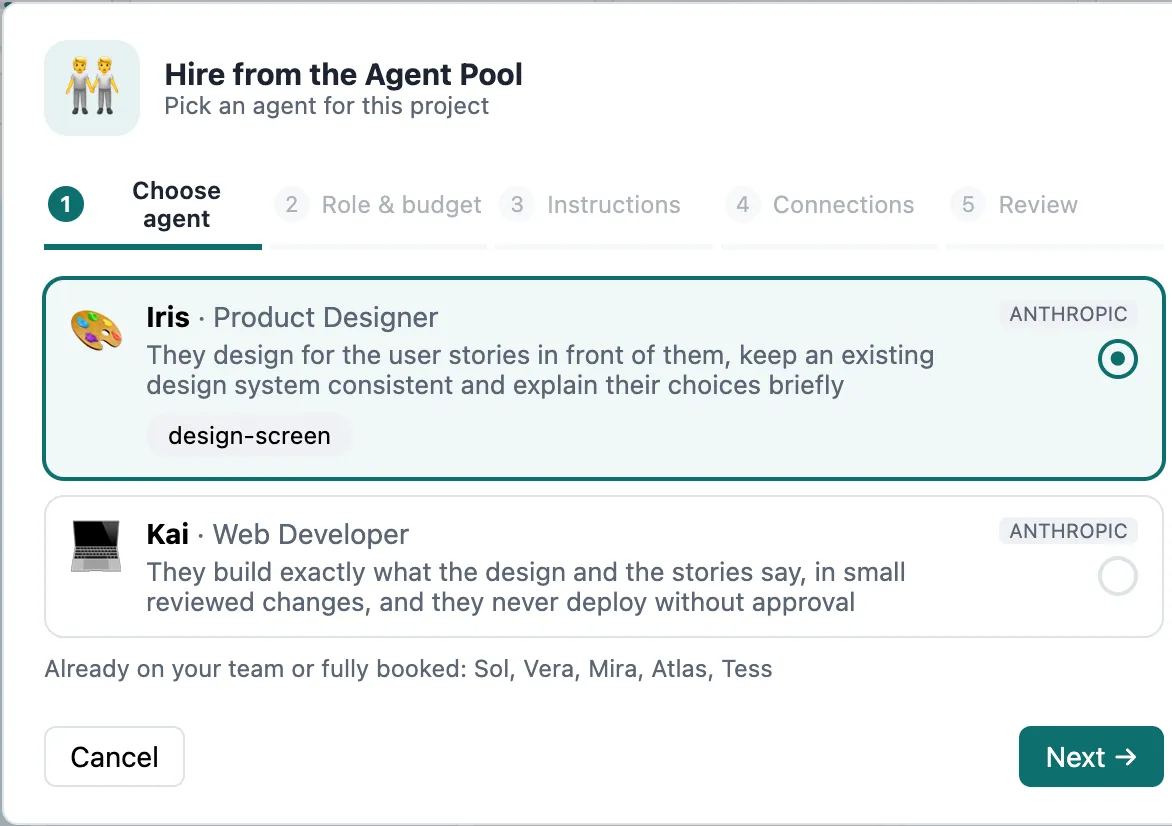
Each card shows the agent’s role, skills and model, and how busy it is:
| Badge | Meaning |
|---|---|
| Available | Free to take on your project. |
| Busy x% | Already hired elsewhere, but has capacity left. |
| At capacity | Hired in as many projects as its capacity allows. |
Only agents in the Available lifecycle state appear — retired or draft agents cannot be hired.
2. Role & budget
Section titled “2. Role & budget”- Reports to — the person who answers the agent’s questions and approves its results. Usually you.
- Budget — how much the agent may spend in this project (e.g. $10, $20, $50). It is a hard cap; see Budgets.
3. Instructions
Section titled “3. Instructions”Optional notes added to every task in this project, e.g. “Use our requirement template; IEC 62304 style.”
4. Connections
Section titled “4. Connections”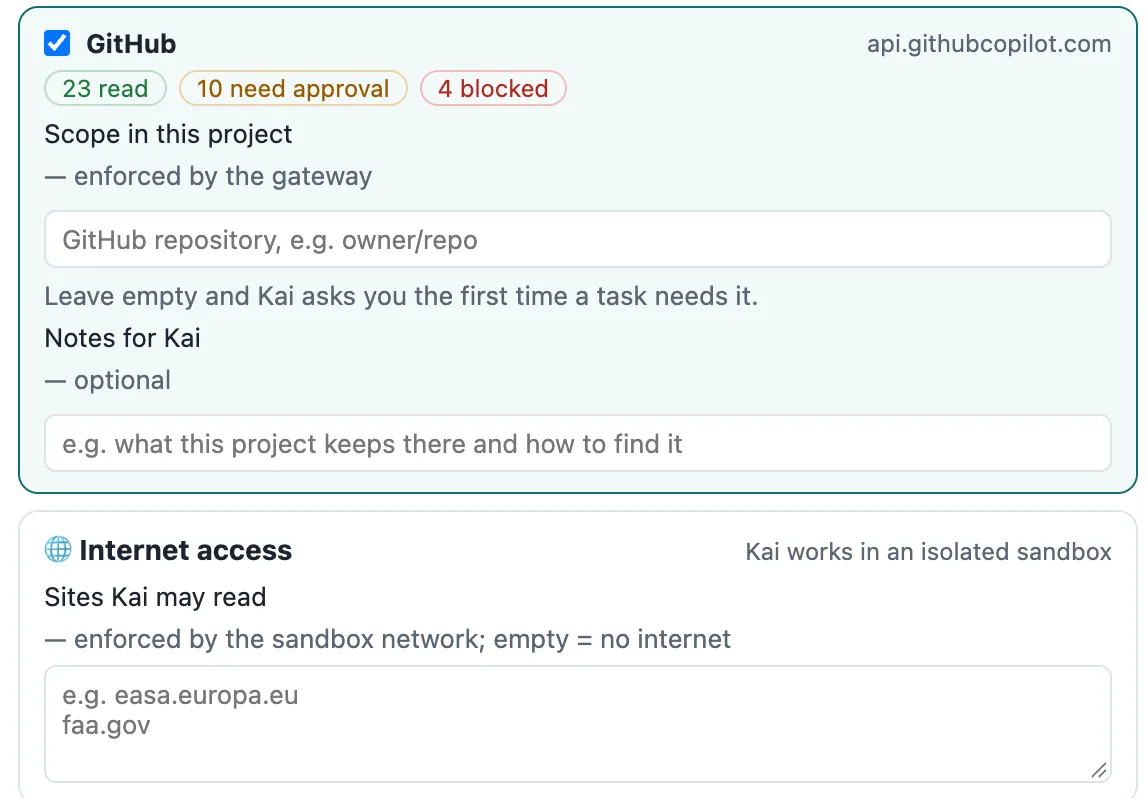
Tick which connected systems the agent may use in this project — only connections the agent is set up to use and that are active appear. For connections that need a scope (e.g. which GitLab repository), set it here or leave it open: the agent will ask you the first time it needs it. You can add a note per connection, e.g. “Only the firmware repository.” Settings from earlier hires in the same project are pre-filled.
Agents that work in their own sandbox can also get read-only internet access to a list of sites, one domain per line (e.g. easa.europa.eu). Empty means no internet. See Sandboxes.
5. Review
Section titled “5. Review”Check the summary and hire. The agent joins the project — its Polarion user gets the project roles it needs — and introduces itself with a comment on its engagement work item. It now appears on the Team page and in Polarion’s assignee picker.
Pause, resume, let go
Section titled “Pause, resume, let go”Open the agent’s ⚙ menu on its tile:
- Pause — the agent stops taking work in this project. Resume brings it back.
- Let go… — after a confirmation, the agent leaves the project. Its Polarion user loses access; everything it produced stays.
The engagement work item
Section titled “The engagement work item”Every hire is an Engagement work item in your project. It holds the supervisor, budget and spend, project instructions, granted connections with scopes, standing approvals and internet access — and the Agent Brain panel. Open it from the agent’s ⚙ menu → Engagement in Polarion.